Help Page - Tutorial
Quick Link Instructions1. General Recommendations for MelGene Usage.
2. MelGene Search Engine (Case Scenario).
3. Dynamic Network Manipulation (Case Scenario).
1. General Recommendations for MelGene Usage Top Page
Browser Support


Please use Browser's latest version
2. MelGene Search Engine (Case Scenario) Top Page
— The updated, publicly available version of MelGene enables users to search the database based on a variety of parameters.
More precisely, the database can be searched by gene name, polymorphism name, chromosome, name of the
first author of a publication, the year of publication, the minimal number of cases per population, the
geographical origin of study populations, and by using a free text keyword search field.
Here is a screenshot of the main MelGene search form:
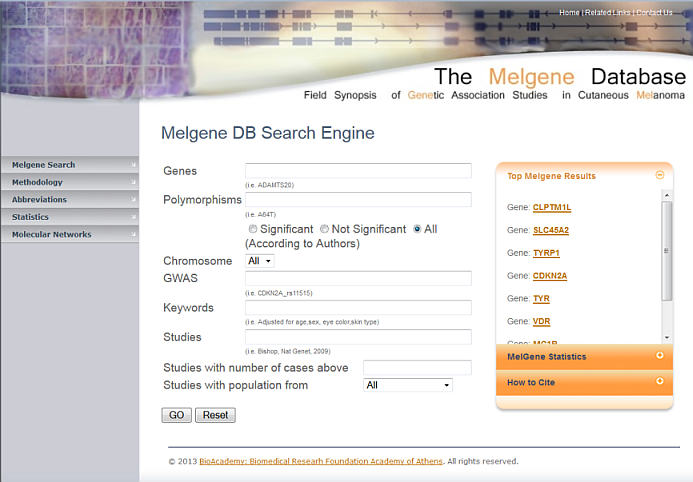
By pressing "GO" button, search is performed based on the selected parameters.
By pressing "Reset" button, all form entries are cleared.
— Searching by Gene (i.e. PLA2G6), a query result is presented on the bottom of the image were the corresponding Gene along with the accompanying information is given to the user.

— Clicking on the column entitled “study” a window redirects the user to the relevant publication, while pressing on the SNP id (i.e. rs6001027) a new window with the corresponding meta-analysis is presented (log odd ratios using random-effects models and Contour-enhanced funnel plot of the log odd rations vs standard error) (if enough data for the meta-analysis are available).


— Additional information concerning meta-analysis data are also provided to the user. Moreover, external links to databases for retrieving addition information concerning the corresponding SNP are also available on the left menu Panel.

— By clicking on the corresponding Chromosome, (22 in the present example) a complete list of MelGene database SNPs belonging to the selected Chromosome are presented along with their Loci and the Reference Publication.

3. Dynamic Network Manipulation (Case Scenario) Top Page
— Under the “Molecular Network” section, user may selects to display the gene Physical Interaction network constructed using the Cytoscape - GeneMANIA plugin.
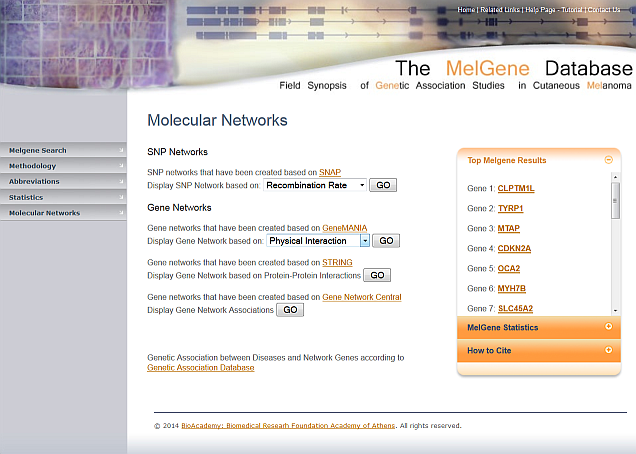
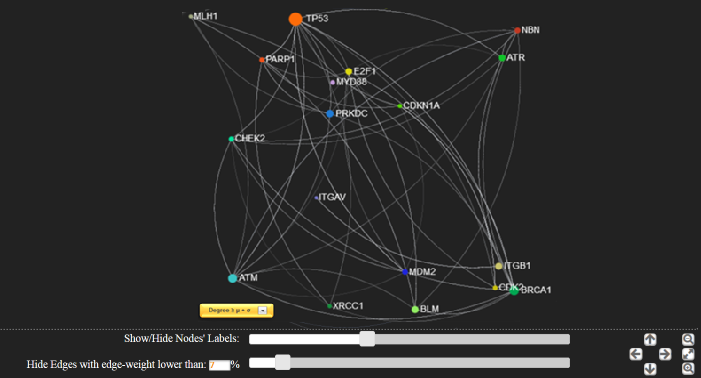
— Users are able to selected a random or circular representation layout of their network

— Filtration of the visualization can be further accomplished by selecting to view Nodes that are above the
a threshold defined by an average ± standard deviation value of a pre-calculated network characteristic
i.e. Degree, Closeness, Betweeness, Eigenvector Centrality)

— Further filtration can be accomplished by clicking on a Node and viewing its first neighbors.
The same can be performed by selecting the Node using the drop down menu as shown above. In addition, slider “Show/Hide
Nodes’ Labels” can be used in order to show or hide nodes’ labels with number of 1st neighbors lower than the selected threshold.
Similarly, slider “Hide Edges with edge-weight” with a value lower than a percentage of the maximum number of weights can be also used.

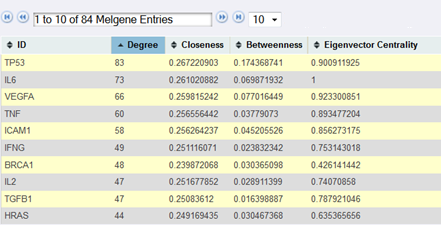
— By selecting a Node (i.e. TP53), precalculated network characteristics (Degree, Closeness, Betweeness, Eigenvector Centrality)
of the selected Node, as well as its first neighbors are also provided. User can also sort the resulted table by clicking on
the header of each column both in ascending or descending order.